Creating Next Year's Cycle and Carrying Leave
As one leave year draws to a close, there are a few things to set up so employees can carry on booking leave into the new year without interruption. This guide walks through the full process in order.
There are four steps to moving into a new leave year:
- Create the new leave cycle — set up the cycle dates, working days and holidays for the year ahead.
- Review the allocations — check that entitlements have carried across sensibly for the new cycle.
When the new leave year starts:
- Lock the previous cycle — to prevent it from being accidentally altered.
- Run the carry-over leave process — for any policies that allow unused leave to be carried forward.
Steps 1 and 2 can be done well in advance — many businesses set up next year's cycle months ahead of time. Steps 3 and 4 should wait until the new leave year has actually begun, since they depend on employees' final leave balances for the year that's ending.
Step 1: Create the New Leave Cycle
Every leave cycle needs to exist before employees can be assigned entitlements or book leave against it. Setting this up ahead of time means employees can start booking leave into the new year (e.g. booking a holiday in February of next year) without having to wait until the old cycle finishes.
-
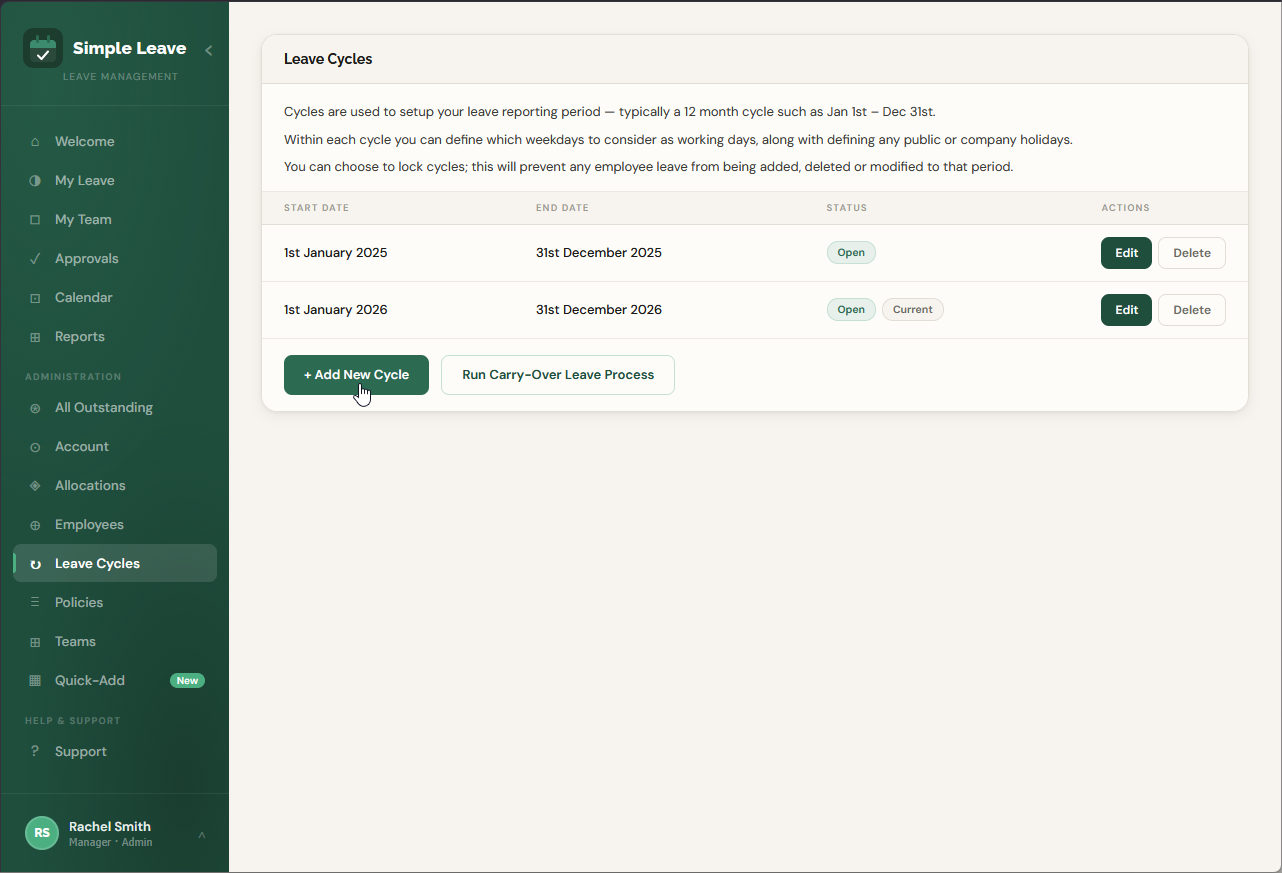
Go to Leave Cycles under the Administration section of the sidebar.
-
Click + Add New Cycle.
-
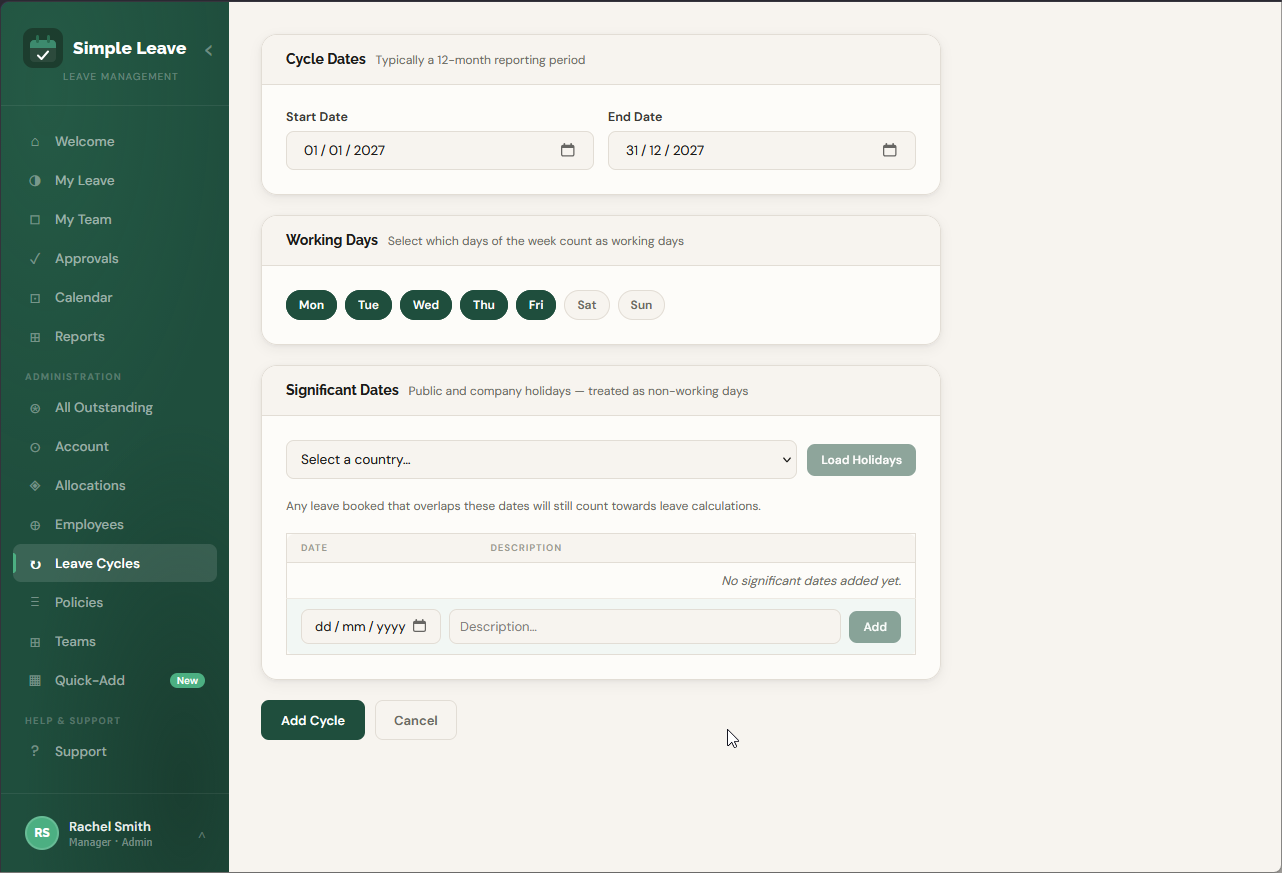
Check the Start Date and End Date for the new cycle. This is typically a 12-month period. Simple Leave will automatically set it up to follow on from your current leave cycle.
-
Choose the Working Days that apply to your organisation (e.g. Monday to Friday).
-
Add any Significant Dates — public holidays or company days — that fall within the new cycle. You can select a country to load its default public holidays, or add custom dates individually.
-
Click Add Cycle to save it.
A cycle cannot overlap with another existing cycle — its start and end dates must fall outside any cycle you've already created.
Step 2: Review the Allocations
Once the new cycle exists, it's worth checking the allocations that have been set up for it before employees start relying on them. This helps catch anything that looks wrong — for example an entitlement that hasn't carried across as expected — before it affects leave requests or balances.
-
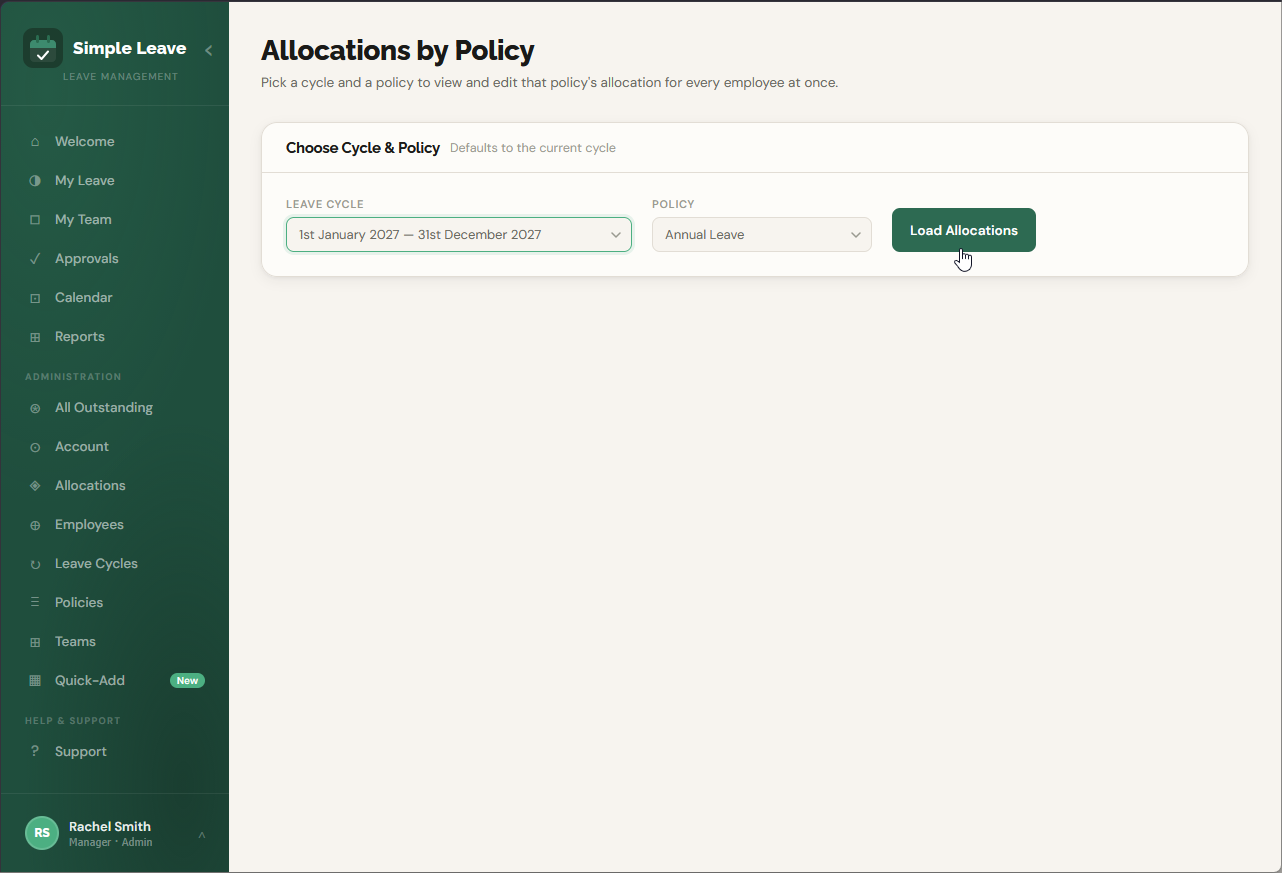
Go to Allocations under the Administration section of the sidebar, and click the By Policy Type tab.
-
Choose the new Leave Cycle and the Policy you want to review.
-
Click Load Allocations.
-
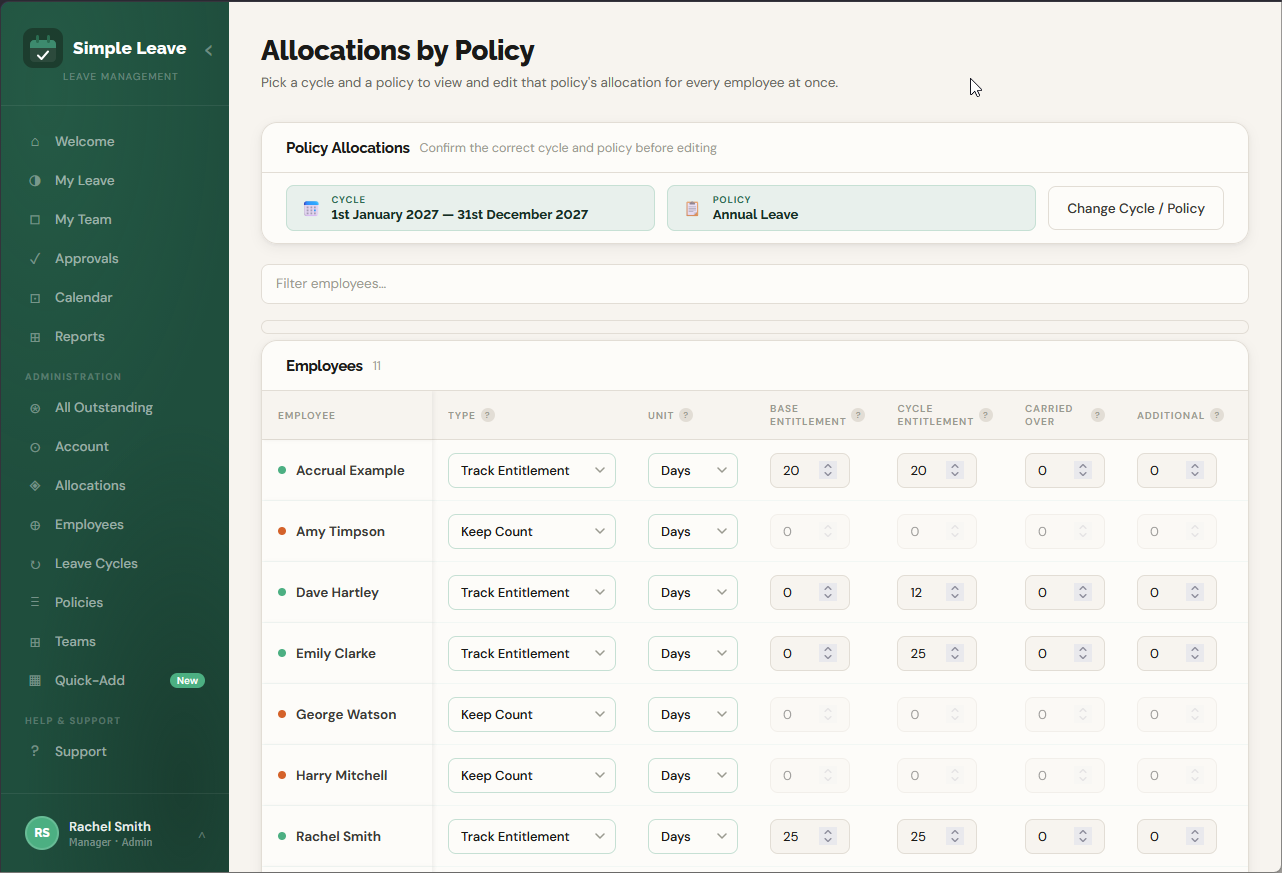
Review the table of employees for that policy — checking their Type, Unit, Base Entitlement and Cycle Entitlement look correct for the new cycle. The Carried Over column will show 0 for everyone at this point — see Step 4 below for how this gets calculated once the new leave year starts. Make any corrections needed and click Save Allocations.
-
Repeat this for each policy that applies to your organisation.
See Managing Allocations for a full explanation of how entitlements are calculated, and how to edit them by employee or by policy.
When the New Leave Year Starts
The next two steps should only be carried out once the new leave cycle has actually begun. That's because they both rely on knowing employees' final leave balances for the cycle that has just ended — locking it and carrying over leave too early risks working from figures that could still change.
Step 3: Lock the Previous Cycle
Locking a cycle prevents employees, managers and administrators from adding leave, deleting leave, or changing allocations within that period. This protects historic leave data from being accidentally altered once a leave year is finished with, and locks the figures in place for audit purposes.
-
Go to Leave Cycles under the Administration section of the sidebar.
-
Click Edit on the cycle that has just ended.
-
Scroll down to the Lock Period section and tick Lock this cycle.
-
Click Update Cycle to save.
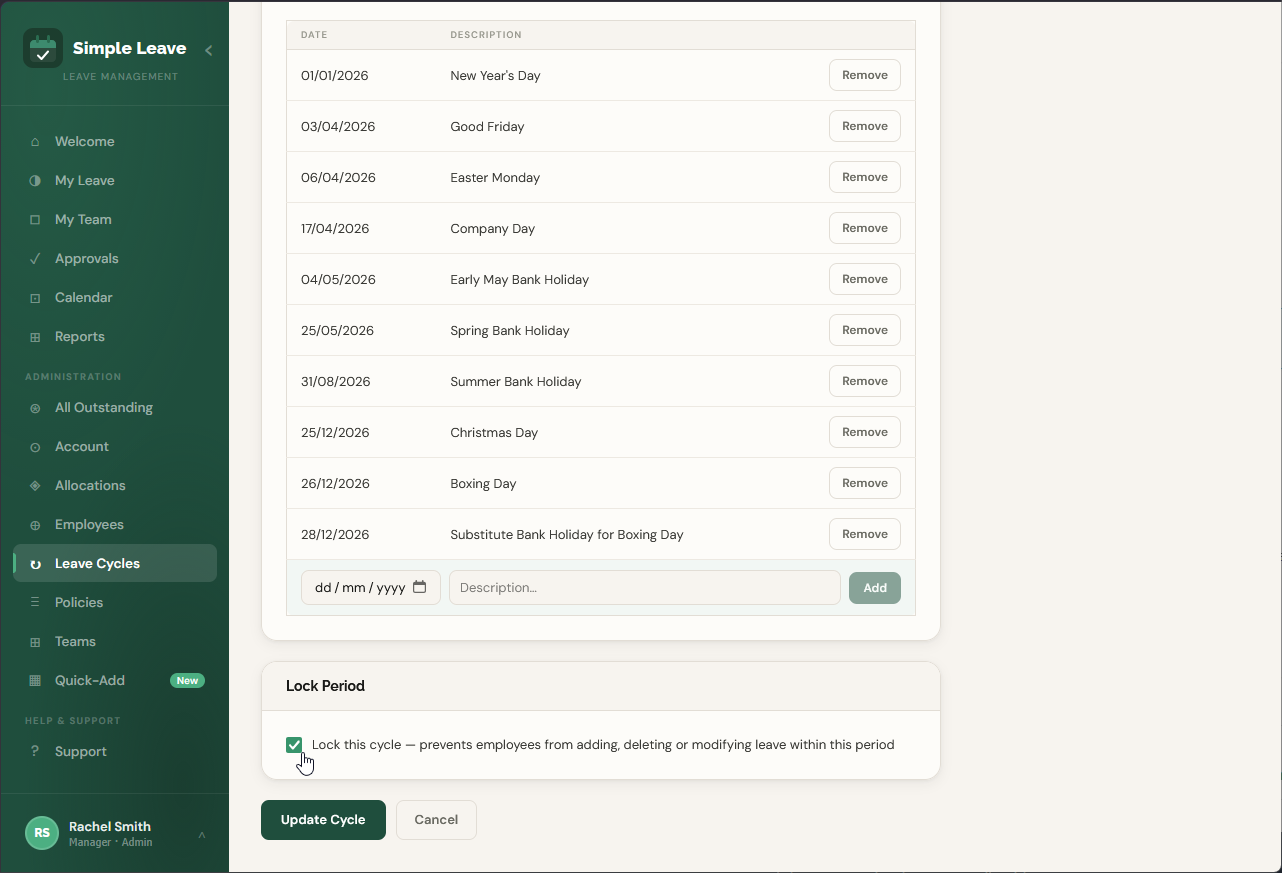
It's good practice to lock past cycles as soon as they're finished with, while keeping the current and future cycles open.
Step 4: Run the Carry-Over Leave Process
Some leave policies allow employees to carry unused leave into the new cycle — for example an employee who didn't use all of their annual leave allowance. Rather than working this out and entering it by hand for every employee, the carry-over leave process calculates it automatically for a whole policy at once.
-
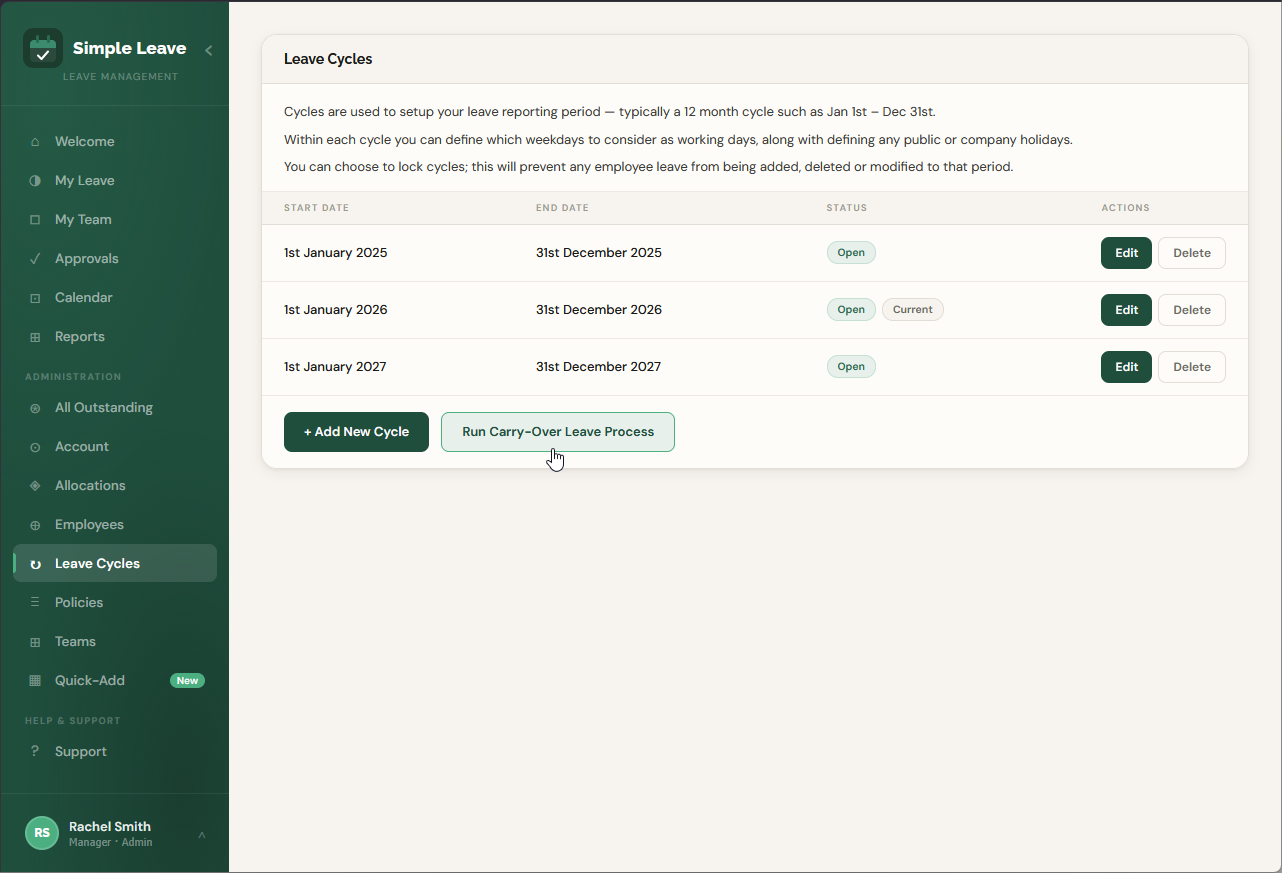
Go to Leave Cycles under the Administration section of the sidebar.
-
Click Run Carry-Over Leave Process.
-
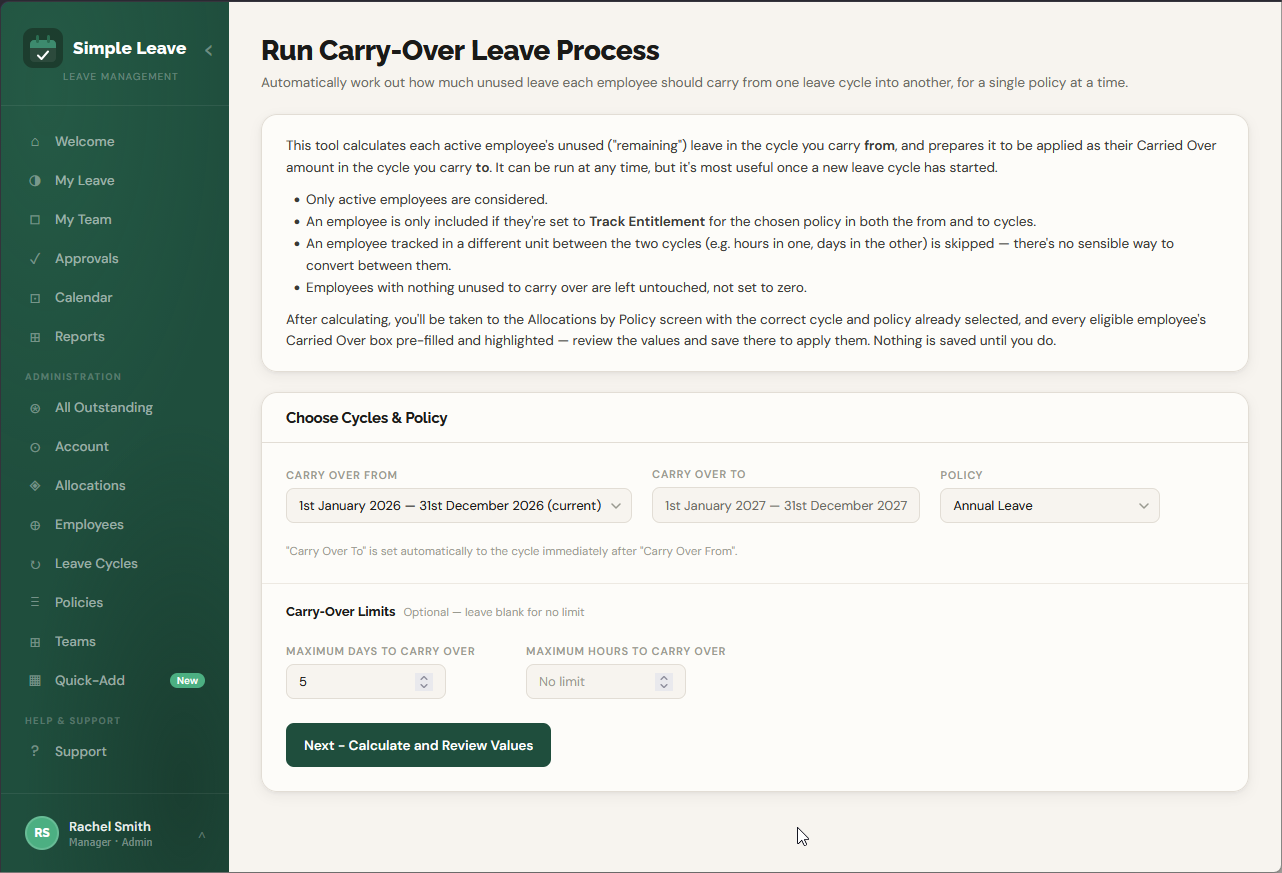
Choose the cycle to carry leave from — typically the cycle that has just ended. The cycle to carry leave to is set automatically to the cycle immediately following it.
-
Choose the Policy you want to run the process for.
-
Optionally set a Maximum Days to Carry Over and/or Maximum Hours to Carry Over — leave either blank for no limit. Whichever matches an employee's tracked unit caps the amount carried across for them.
-
Click Next - Calculate and Review Values.
-
You'll be taken to the Allocations by Policy screen with the correct cycle and policy already selected, and every eligible employee's Carried Over box pre-filled and highlighted. Review the highlighted values, adjust anything if needed, and click Save Allocations to apply them.
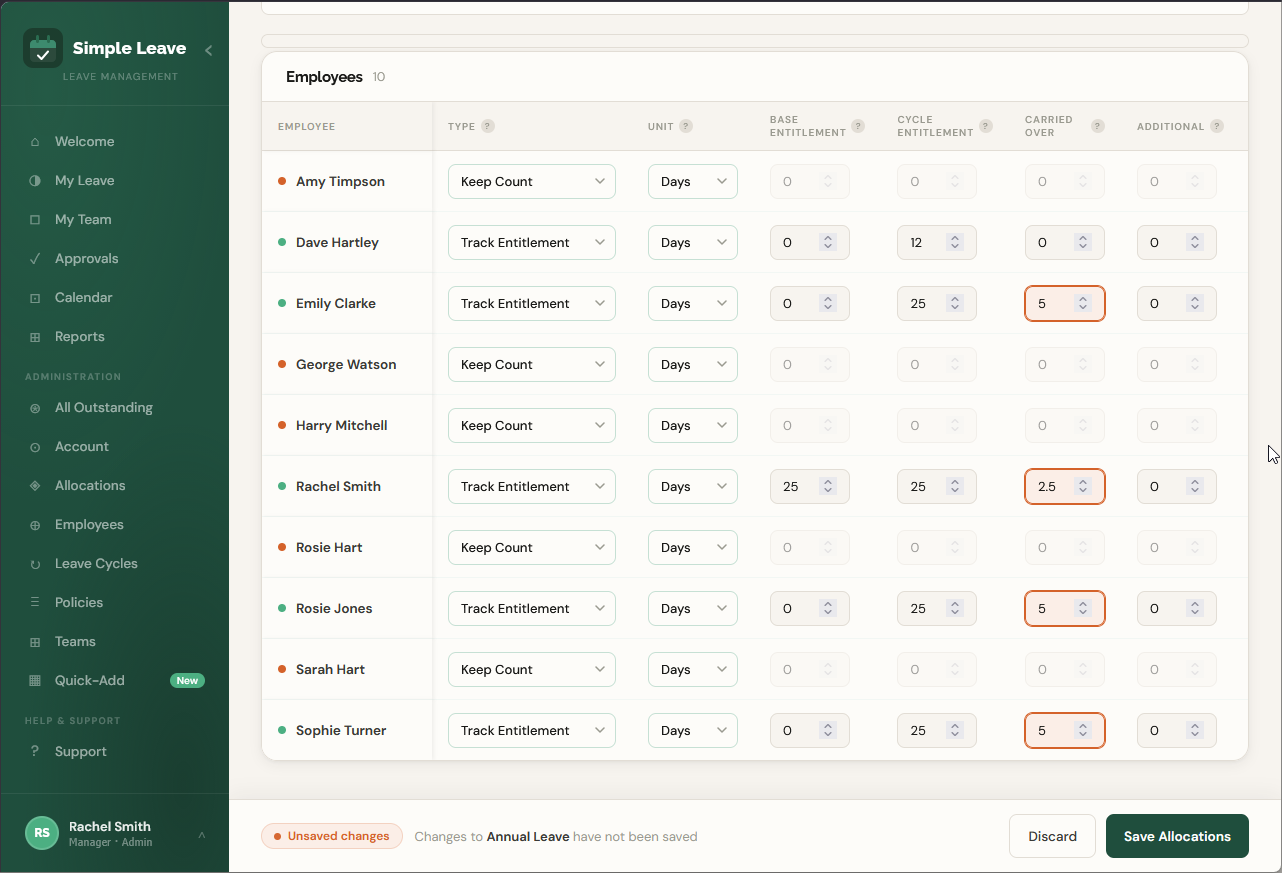
Nothing is saved until you click Save Allocations. You can run this process as many times as you like, for any combination of cycles and policies.
An employee is only included in the carry-over calculation if:
- They're active.
- They're set to
Track Entitlementfor the chosen policy in both the "from" and "to" cycles. - They're tracked in the same unit (days or hours) in both cycles.
- They actually have unused leave remaining — employees with nothing left to carry over are left untouched, not set to zero.
The carry-over process runs for one policy at a time. Repeat this process for each leave category/policy that you allow leave to be carried over for.